
Nginx for windows(网页Web服务器)
v1.21.2 官方最新版 发表评论
- 软件类别:服务器区
- 软件大小:1.64 MB
- 更新时间:2021-09-03 15:49
- 软件版本:v1.21.2 官方最新版
- 软件语言:中文
- 软件等级:
- 官方网址:http://nginx.org/
评分:
好评:1
差评:0
软件介绍
nginx for windows是一款轻量级的Web 服务器,现在很多反向代理服务器及电子邮件(IMAP/POP3)代理服务器,不仅可以减小服务器压力,同时也提高安全度。
关于Nginx
Nginx是Apache服务器不错的替代品:Nginx在美国是做虚拟主机生意的老板们经常选择的软件平台之一。能够支持高达 50,000 个并发连接数的响应。笔者将会使用Nginx将默认网址使用的80端口与tomcat使用的8080端口进行对接,实现使用80端口(域名)访问Tomcat下的网页,并配置HTTPS协议提高安全性。
安装提示
1、安装的说明
下载后解压得到如下一些文件
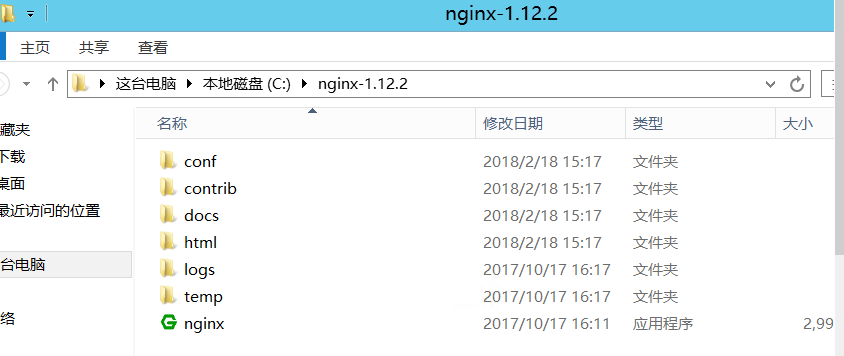
首先需要域名和SSL证书来配置HTTPS协议,SSL证书可以从很多地方获取或者自己创建
这里以腾讯云的CA证书为例子,有了域名和SSL证书后,按照腾讯云的官方提示,将配置Nginx的安全证书(.crt)和注册表项(.key)放到Nginx解压目录下的conf文件夹下方便管理【证书的名字这里改为1.crt和2.key】
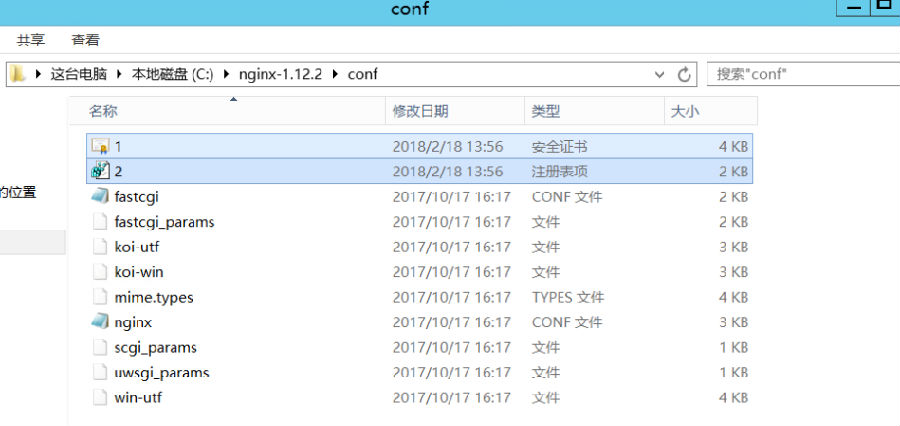
然后需要将其配置到Nginx中,修改conf目录下的nginx.conf文件如下:
#user nobody;
#user root;
worker_processes 1;
#error_log logs/error.log;
#error_log logs/error.log notice;
#error_log logs/error.log info;
#pid logs/nginx.pid;
events {
worker_connections 1024;
}
http {
include mime.types;
default_type application/octet-stream;
#log_format main '$remote_addr - $remote_user [$time_local] &$request& '
# '$status $body_bytes_sent &$http_referer& '
# '&$http_user_agent& &$http_x_forwarded_for&';
#access_log logs/access.log main;
sendfile on;
#tcp_nopush on;
charset utf-8;
#keepalive_timeout 0;
keepalive_timeout 120;
#gzip on;
#填写自己的服务器ip和Tomcat端口
upstream local_tomcat {
server xxx.xxx.xxx.xxx:8080;
}
server {
listen 80 default_server;
listen 443 ssl;
charset utf-8;
#填写自己的网站域名
server_name www.xxxx.xxx;
#证书文件
ssl_certificate C:/nginx-1.12.2/conf/1.crt;
#私钥文件
ssl_certificate_key C:/nginx-1.12.2/conf/2.key;
ssl_session_timeout 5m;
ssl_protocols TLSv1 TLSv1.1 TLSv1.2;
ssl_ciphers ECDHE-RSA-AES128-GCM-SHA256:HIGH:!aNULL:!MD5:!RC4:!DHE;
ssl_prefer_server_ciphers on;
#配置HTTPS
location ~ /^[H,h][T,t][T,t][P,p][S,s]/ {
#网站根目录,为Tomcat下的wepapps目录
root C:/Tomcat7/apache-tomcat-7.0.82/webapps;
proxy_pass http://127.0.0.1:8080;
proxy_set_header Host $http_addr;
proxy_set_header X-Real-IP $remote_addr;
proxy_set_header X-Forwarded-For $proxy_add_x_forwarded_for;
}
location ~ .jsp$ {
root C:/Tomcat7/apache-tomcat-7.0.82/webapps;
proxy_pass http://local_tomcat;
proxy_set_header Host $host:$server_port;
proxy_set_header X-Real-IP $remote_addr;
proxy_set_header X-Real-PORT $remote_port;
proxy_set_header X-Forwarded-For $proxy_add_x_forwarded_for;
}
location ~ .html$ {
root C:/Tomcat7/apache-tomcat-7.0.82/webapps;
proxy_pass http://127.0.0.1:8080;
proxy_set_header Host $http_addr;
proxy_set_header X-Real-IP $remote_addr;
proxy_set_header X-Forwarded-For $proxy_add_x_forwarded_for;
}
location / {
root C:/Tomcat7/apache-tomcat-7.0.82/webapps;
proxy_pass http://127.0.0.1:8080;
proxy_set_header Host $http_addr;
proxy_set_header X-Real-IP $remote_addr;
proxy_set_header X-Forwarded-For $proxy_add_x_forwarded_for;
}
#error_page 404 /404.html;
# redirect server error pages to the static page /50x.html
#
error_page 500 502 503 504 /50x.html;
location = /50x.html {
root html;
}
# proxy the php scripts to Apache listening on 127.0.0.1:80
#
#location ~ .php$ {
# proxy_pass http://127.0.0.1;
#}
# pass the PHP scripts to FastCGI server listening on 127.0.0.1:9000
#
#location ~ .php$ {
# root html;
# fastcgi_pass 127.0.0.1:9000;
# fastcgi_index index.php;
# fastcgi_param SCRIPT_FILENAME /scripts$fastcgi_script_name;
# include fastcgi_params;
#}
# deny access to .htaccess files, if Apache's document root
# concurs with nginx's one
#
#location ~ /.ht {
# deny all;
#}
}
# another virtual host using mix of IP-, name-, and port-based configuration
#
#server {
# listen 8000;
# listen somename:8080;
# server_name somename alias another.alias;
# location / {
# root html;
# index index.html index.htm;
# }
#}
# HTTPS server
#
#server {
# listen 443 ssl;
# server_name localhost;
# ssl_certificate cert.pem;
# ssl_certificate_key cert.key;
# ssl_session_cache shared:SSL:1m;
# ssl_session_timeout 5m;
# ssl_ciphers HIGH:!aNULL:!MD5;
# ssl_prefer_server_ciphers on;
# location / {
# root html;
# index index.html index.htm;
# }
#}
}
2、 运行Nginx:
打开命令提示符跳转到nginx解压目录输入nginx

出现上述提示说明启动nginx失败,是由于电脑的80端口已经被占用,占用80端口的原因和解除方式都有很多种,例如SQLServer的ReportingServicesService占用,Apache,iis,或者其他原因,笔者在这就不说明怎么解除占用了
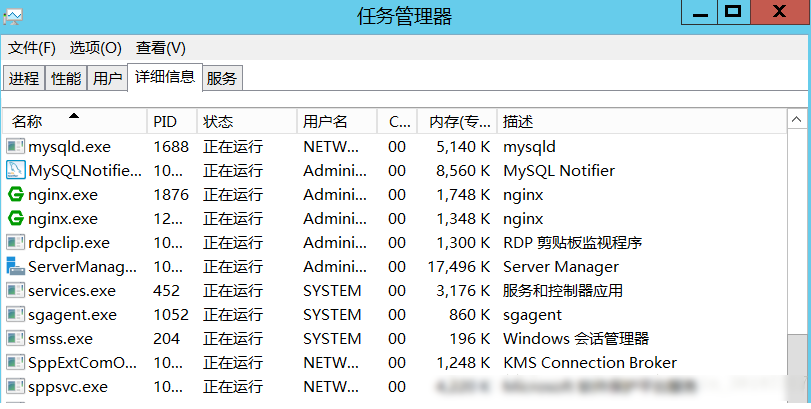
解除占用后正常启动如下图:可以在任务管理器看到有两个nginx程序在运行,至于为什么是两个,可以查看Nginx官方的文档,不解释了
3、关于使用
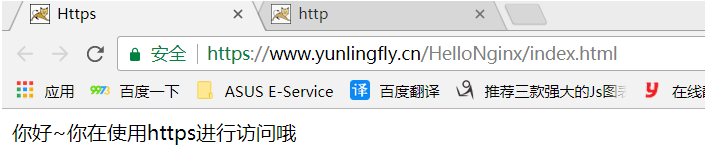
开启Nginx,Tomcat。打开浏览器输入http(s)://你的域名/项目文件名/文件名即可进行访问
例如笔者配置的服务器(如果我的服务器开着的话可以访问。。。):
使用注意事项:
1 首次安装Nginx时,不要直接点击nginx.exe程序,否则会导致很多问题,当配置完成后,以后再开启nginx即可直接点击nginx.exe程序,不需要再使用命令提示符操作,附nginx的基本操作指令:
开启:start nginx
检查配置文件:nginx -t -c C:/nginx-1.12.2/conf/nginx.conf
重新加载配置文件(很实用的指令):nginx -s reload
快速停止:nginx -s stop
完整停止:nginx -s quit
2 检测配置文件没有问题,但是使用HTTPS不能访问,可能是由于防火墙的原因,可以将其关闭试试,成功后,可以自己配置防火墙入网规则,将80(Nginx),443(SSL),1433(sql server),8080(Tomcat)等等端口添加至防火墙里,来继续开启防火墙(我当时就是在这麻烦了很久)
3 有些nginx.conf配置不正确会导致访问网页时样式文件(js、css)不能一起返回,经过测试,笔者的配置是没有这个问题的
ps:感谢作者:芸灵fly分享的教程
更新日志:
v1.19.9版本更新
修复 nginx 在使用邮件代理模块 (mail proxy module) 时无法构建的问题,使用 ngx_mail_ssl_module 则正常。这个错误出现在 1.19.8 中
修复当与 gRPC 后端搭配使用时,可能出现&upstream sent response body larger than indicated content length&错误。这个问题出现在 1.19.1 中
如果客户端在丢弃请求体的同时关闭了连接,nginx 可能在 keepalive 超时前不会关闭连接
当等待 auth_delay 或 limit_req 延迟时,或者与后端一起搭配使用时,nginx 可能无法检测到客户端已经关闭的连接
修复 eventport 方法中的错误
v1.2.8版本更新
新的会话没有如果“ssl_session_cache共享”指令用于存储和共享内存中有没有免费的空间。感谢彼得·西科拉。
如果子请求使用一个DNS子请求处理过程中发生了错误的反应可能会挂起。感谢到Lanshun周。
在的ngx_http_mp4_module。由于赫尔诺特Vormayr。 *)修正:在后端使用的计数。
v1.2.12版本更新
变量支持在“proxy_bind”,“fastcgi_bind”,“memcached_bind”,“scgi_bind”,和“uwsgi_bind”指令。
管,request_length,$ time_iso8601,美元和$time_local变量,现在不仅可以在“log_format”使用指令。
支持IPv6ngx_http_geoip_module。
修正指令“proxy_method”。
修正一个分割故障可能发生在工作进程中,如果使用的投票方法解析。
修正nginx的可能霸占CPU在SSL握手与后端的选择,投票,或使用/ dev / poll的方法。
修正“暴击SSL_write()失败(SSL:)”的错误。
修正“client_body_in_file_only”指令的错误。
修正指令“fastcgi_keep_conn”。
v1.2.2版本更新
修复了使用 try_files 时可能导致的段错误的问题,该问题出现在 1.1.19 版本
当缓冲超过 IOV_MAX 时可能会导致响应被截断
修复了 image_filter 指令使用 crop 参数的问题
下载地址
Pc版Nginx for windows(网页Web服务器) v1.21.2 官方最新版
猜你喜欢
nginxweb服务器

nginx
nginx哪个版本稳定?使用nginx服务器搭建网站的朋友可以留意一下,下面是nginx官网推出的一系列版本的nginx客户端,包括win版,mac版,linux版...


web服务器
提供互联网最全的web服务器软件下载,不知道常见的web服务器有哪些,下面可以供你参考,不管是个人还是企业使用,都可以下载不同类型的常见的web服务器软件...





本类推荐
 Microsoft Exchange Server 2010 SP2
 zend framework 1.10.2 核心版
 Apache Tomcat 7.0
 360主机卫士iis版
 花生壳动态域名解析
 iis6.0完整安装包
 啊D组件查询程序
 悬镜管家电脑端
本类最新
 北京时间v11.4.0
 开州看房网v1.1.7
 护卫神JSP大师v3.2 官方版
 纵横iis防盗链新云专用版v5.0 专业版
 Emby服务器v16.0.30530.185 绿色版
 XAMPP for Windowsv8.0.5.0 多国语言官方安装版
 开源脚本语言(PHP)v8.1.9 for Windows 32位/64位
 WampServer x64位(Apache服务器套装)v3.1.7 官方安装版
 iis7服务器管理v2.1.9 官方版
- PHP环镜windows版32位v8.1.8 官方最新版
- Nginx稳定版v1.23.0 官方版
 VNC Server for Windowsv6.9.0 官方安装版
 vnc enterprise edition汉化版(含注册码)v4.2.9 中文安装版
 宝塔Windows面板v7.5.0 官方最新版
- 宝塔面板手动版v7.5.0 免费版
相关软件
- Nginx稳定版v1.23.0 官方版
Nginx稳定版是一款由俄罗斯程序员IgorSysoev所开发轻量级的网页服务器、主要它还是开源的,我们可以添加代码达到自己想要的效果,温馨提示,如果您是用windows作服务器的话,还是建议用iis配置webNginx稳定版的优点Nginx可以
 Apache HTTP Server for Win64v2.4.46 绿色版
ApacheHTTPServerforWin64是一款功能强大的Web服务器软件,也是目前最流行的服务器软件之一,需要与PHP或Python等CGI脚本一起配合使用,软件操作简单,使用方便,感兴趣的用户赶快来IT猫扑下载体验吧!apachehttpserver64位介绍A
 Apache HTTP Serverv2.4.46 for Windows 官方安装版
ApacheHTTPServer是目前比较好用的一款http服务器,支持用户远程操作,它的上传速度超级快!此番带来的最新版本功能全面,特别好用!有需要的朋友,可以来IT猫扑下载,其中含有32位、64位安装包注意区分使用哦!官方介绍ApacheHTTPSe
 nginxWebUI(可视化配置工具)v1.9.2 官方版
nginxWebUI是一款nginx网页de配置工具,通过这个工具实现可视化界面管理nginx集群,操作界面直观简单,对于不少不熟悉操作语法或者比较懒的朋友,这个也可以说是一个偷懒的工具了。功能说明本项目可以使用WebUI配置nginx的各
下载排行
- 1ccproxy免注册码

服务器区 / 6.27 MB - 2IIS7.0完整安装包

服务器区 / 174.00 MB - 3冰点还原服务器版

服务器区 / 4.27 MB - 4开源脚本语言(PHP)
服务器区 / 30.01 MB - 5win10 iis管理器

服务器区 / 15.10 MB - 6IIS 7.0独立安装包
服务器区 / 175.00 MB - 7PHP For Windows
服务器区 / 18.64 MB - 8IIS Crypto(iis服务器安全管理工具)

服务器区 / 97.00 KB - 9VisualSVN Server中文版

服务器区 / 9.60 MB - 10php5.4
服务器区 / 35.93 MB



网友评论
查看所有0条评论